> ## Documentation Index
> Fetch the complete documentation index at: https://docs.morph-data.io/llms.txt
> Use this file to discover all available pages before exploring further.
# Create a chat app
Morph makes it easy to create chat apps that utilise the LLM API and share them with your team.
In this tutorial, you will create a chat app using Morph's LLM components and OpenAI's API.
## Prerequisites
Please install pageckages in advance by the following command.
```bash pip theme={"dark"}
pip install openai
```
```bash poetry theme={"dark"}
poetry add langchain-ollama
```
```bash uv theme={"dark"}
uv add langchain-ollama
```
Obtain the OpenAI API key in advance from the OpenAI dashboard and save it in an `.env` file.
```shell .env theme={"dark"}
OPENAI_API_KEY=your_api_key
```
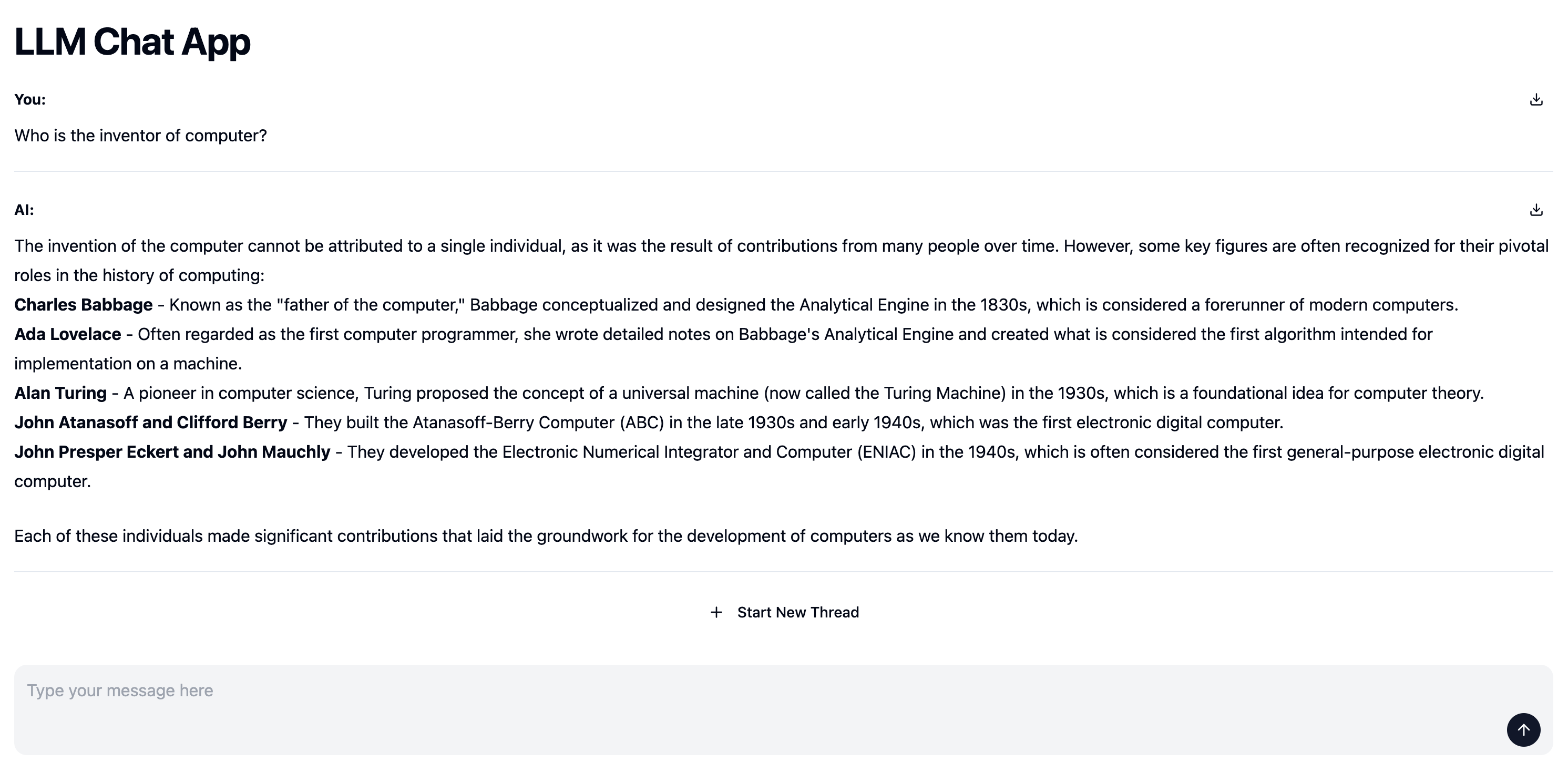
## Output
 ## Tutorial
Create a chat app using the `` component and the LLM API.
Implement the chat app logic in the Python function and use the `yield` to stream the chat logs, allowing the `` component to automatically display the streaming results.
Implement the logic to answer user questions using the OpenAI SDK.
The function specified in the `postData` attribute of the `` component takes `prompt` and `thread_id` as arguments.
* prompt: The prompt entered by the user
* thread\_id: The ID of the chat thread. A new ID is issued when a new thread is opened.
```python theme={"dark"}
import os
import morph
from morph import MorphGlobalContext
from openai import OpenAI
@morph.func
def llm_chat_app(context: MorphGlobalContext):
client = OpenAI(api_key=os.getenv("OPENAI_API_KEY"))
prompt = context.vars["prompt"]
# thread_id can be used to identify the chat thread
thread_id = context.vars["thread_id"]
# chat
messages = [{"role": "user", "content": prompt}]
response = client.chat.completions.create(
model="gpt-4o",
messages=messages,
stream=True,
)
for chunk in response:
yield chunk.choices[0].delta.content
```
Specify the Python function in the `postData` attribute of the `` component.
```typescript theme={"dark"}
export const title = "LLM Chat App"
# LLM Chat App
```
## Tutorial
Create a chat app using the `` component and the LLM API.
Implement the chat app logic in the Python function and use the `yield` to stream the chat logs, allowing the `` component to automatically display the streaming results.
Implement the logic to answer user questions using the OpenAI SDK.
The function specified in the `postData` attribute of the `` component takes `prompt` and `thread_id` as arguments.
* prompt: The prompt entered by the user
* thread\_id: The ID of the chat thread. A new ID is issued when a new thread is opened.
```python theme={"dark"}
import os
import morph
from morph import MorphGlobalContext
from openai import OpenAI
@morph.func
def llm_chat_app(context: MorphGlobalContext):
client = OpenAI(api_key=os.getenv("OPENAI_API_KEY"))
prompt = context.vars["prompt"]
# thread_id can be used to identify the chat thread
thread_id = context.vars["thread_id"]
# chat
messages = [{"role": "user", "content": prompt}]
response = client.chat.completions.create(
model="gpt-4o",
messages=messages,
stream=True,
)
for chunk in response:
yield chunk.choices[0].delta.content
```
Specify the Python function in the `postData` attribute of the `` component.
```typescript theme={"dark"}
export const title = "LLM Chat App"
# LLM Chat App
```