> ## Documentation Index
> Fetch the complete documentation index at: https://docs.morph-data.io/llms.txt
> Use this file to discover all available pages before exploring further.
# Data Connector
## Create a Connector
By creating a connector, you can connect to DBs and SaaS.
Connectors can be created in both cloud and local environments, but using those created in the cloud environment allows you to use them as-is after deployment.
Run [API Key Authentication](/docs/en/advanced/api_key) to set up access from the local environment to Morph cloud.
Create a connector from the "Connectors" tab on the dashboard.
Once created successfully, activate the use of the connector from the project details page and obtain the connection name.
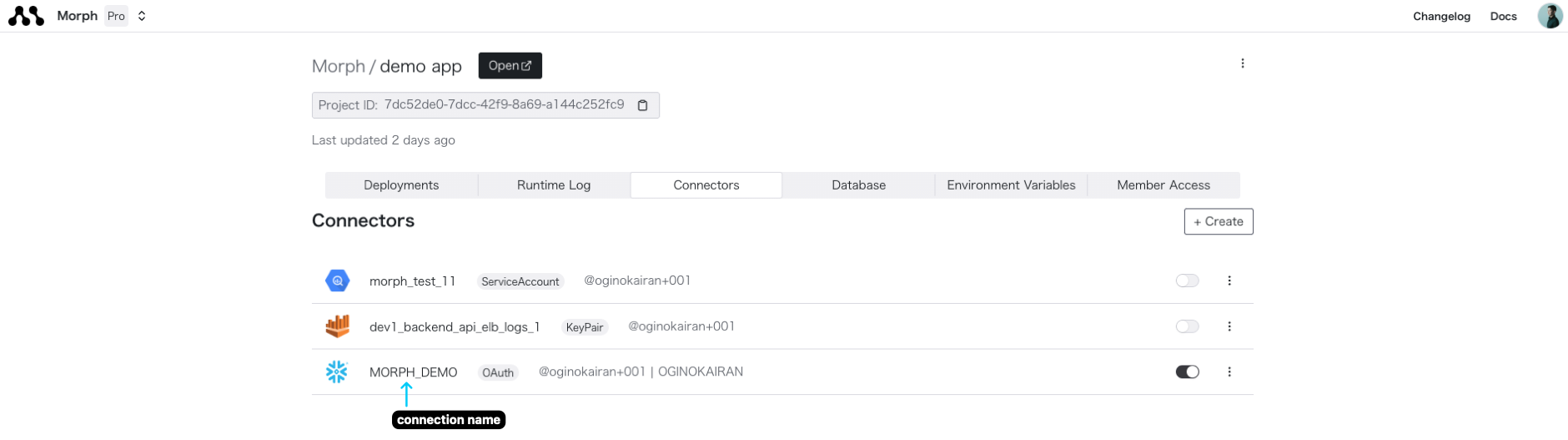 Use the connection name in SQL or Python files to utilize the connector.
For detailed connection methods, please refer to the section at the bottom of this page.
```sql theme={"dark"}
{{
config(
connection="connection_name"
)
}}
select * from table_name;
```
Execute the `morph init` command to save DB connection information in `~/.morph/connections.yml`. Use the connection name set here in SQL files.
```bash Shell theme={"dark"}
morph init
```
Use the connection name in SQL or Python files to utilize the connector. For detailed connection methods, please refer to the section at the bottom of this page.
```sql theme={"dark"}
{{
config(
connection="connection_name"
)
}}
select * from table_name;
```
If a connector with the same name is defined in both the local and cloud environments, the local environment's connector will be used.
After deploying to the cloud, only the connectors defined in the cloud environment are used.
## Connect to DB
Create an SQL file to retrieve data. You can use the SQL syntax of the connected database by defining the connection name in the `config` function.
```sql theme={"dark"}
{{
config(
connection="connection_name"
)
}}
select * from table_name;
```
For information on connecting to different types of databases, please refer to the following.
* [MySQL](/docs/en/advanced/connectors/mysql)
* [PostgreSQL](/docs/en/advanced/connectors/postgresql)
* [BigQuery](/docs/en/advanced/connectors/bigquery)
* [Snowflake](/docs/en/advanced/connectors/snowflake)
* [Redshift](/docs/en/advanced/connectors/redshift)
* [SQLServer](/docs/en/advanced/connectors/mssql)
* [Athena](/docs/en/advanced/connectors/athena)
## Connect to SaaS
Morph provides integration with SaaS.
By using integration, you can focus on implementing business logic without having to implement authentication.
You can obtain the access\_token from the integration created in Python as follows.
```python theme={"dark"}
import pandas as pd
import morph
from morph import MorphGlobalContext
from morph_lib.api import get_auth_token
@morph.func
def get_salesforce_opportunities(context: MorphGlobalContext) -> pd.DataFrame:
access_token = get_auth_token("salesforce-connection-name")
# ↓↓↓ call API with access_token ↓↓↓
```
For information on connecting to different types of SaaS, please refer to the following.
* [Airtable](/docs/en/advanced/connectors/airtable)
* [Attio](/docs/en/advanced/connectors/attio)
* [Freee](/docs/en/advanced/connectors/freee)
* [HubSpot](/docs/en/advanced/connectors/hubspot)
* [Intercom](/docs/en/advanced/connectors/intercom)
* [Linear](/docs/en/advanced/connectors/linear)
* [Notion](/docs/en/advanced/connectors/notion)
* [Mailchimp](/docs/en/advanced/connectors/mailchimp)
* [Salesforce](/docs/en/advanced/connectors/salesforce)
* [Stripe](/docs/en/advanced/connectors/stripe)
Use the connection name in SQL or Python files to utilize the connector.
For detailed connection methods, please refer to the section at the bottom of this page.
```sql theme={"dark"}
{{
config(
connection="connection_name"
)
}}
select * from table_name;
```
Execute the `morph init` command to save DB connection information in `~/.morph/connections.yml`. Use the connection name set here in SQL files.
```bash Shell theme={"dark"}
morph init
```
Use the connection name in SQL or Python files to utilize the connector. For detailed connection methods, please refer to the section at the bottom of this page.
```sql theme={"dark"}
{{
config(
connection="connection_name"
)
}}
select * from table_name;
```
If a connector with the same name is defined in both the local and cloud environments, the local environment's connector will be used.
After deploying to the cloud, only the connectors defined in the cloud environment are used.
## Connect to DB
Create an SQL file to retrieve data. You can use the SQL syntax of the connected database by defining the connection name in the `config` function.
```sql theme={"dark"}
{{
config(
connection="connection_name"
)
}}
select * from table_name;
```
For information on connecting to different types of databases, please refer to the following.
* [MySQL](/docs/en/advanced/connectors/mysql)
* [PostgreSQL](/docs/en/advanced/connectors/postgresql)
* [BigQuery](/docs/en/advanced/connectors/bigquery)
* [Snowflake](/docs/en/advanced/connectors/snowflake)
* [Redshift](/docs/en/advanced/connectors/redshift)
* [SQLServer](/docs/en/advanced/connectors/mssql)
* [Athena](/docs/en/advanced/connectors/athena)
## Connect to SaaS
Morph provides integration with SaaS.
By using integration, you can focus on implementing business logic without having to implement authentication.
You can obtain the access\_token from the integration created in Python as follows.
```python theme={"dark"}
import pandas as pd
import morph
from morph import MorphGlobalContext
from morph_lib.api import get_auth_token
@morph.func
def get_salesforce_opportunities(context: MorphGlobalContext) -> pd.DataFrame:
access_token = get_auth_token("salesforce-connection-name")
# ↓↓↓ call API with access_token ↓↓↓
```
For information on connecting to different types of SaaS, please refer to the following.
* [Airtable](/docs/en/advanced/connectors/airtable)
* [Attio](/docs/en/advanced/connectors/attio)
* [Freee](/docs/en/advanced/connectors/freee)
* [HubSpot](/docs/en/advanced/connectors/hubspot)
* [Intercom](/docs/en/advanced/connectors/intercom)
* [Linear](/docs/en/advanced/connectors/linear)
* [Notion](/docs/en/advanced/connectors/notion)
* [Mailchimp](/docs/en/advanced/connectors/mailchimp)
* [Salesforce](/docs/en/advanced/connectors/salesforce)
* [Stripe](/docs/en/advanced/connectors/stripe)