> ## Documentation Index
> Fetch the complete documentation index at: https://docs.morph-data.io/llms.txt
> Use this file to discover all available pages before exploring further.
#
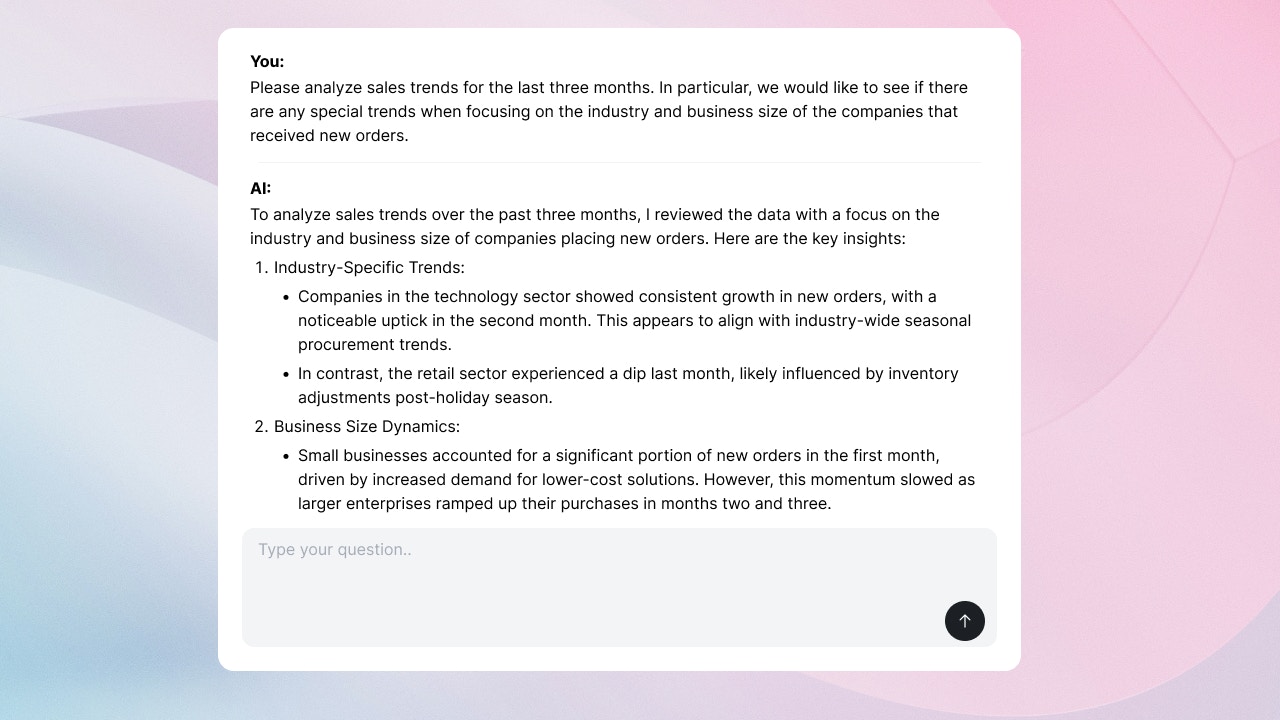 The `` component is a component for streaming processes using Open AI and Anthropic APIs.
```tsx theme={"dark"}
```
`` components can be used for the following functions.
* AI chat ... Chat between user and AI can be realised. It can start and end threads, display AI replies, etc.
* Content generation ... AI generates content in response to text entered by the user. For example, this can be used when the AI generates a document in response to text entered by the user.
* Side-by-side ... Displays user and AI chat and content generation side by side.
Translated with DeepL.com (free version)
## Data specification for ``.
The `` component sends the following data by default to the Python function specified in `postData`.
* `prompt`: text entered by the user.
* `thread_id`: thread ID of the conversation with the AI, updated to a new value, e.g. when the user presses the ‘Start new thread’ button.
* `is_new_conversation`: whether a new conversation has started. Updated to `true`, e.g. when the user presses the ‘Start new thread’ button.
Use the `vars` property if you want to send additional data to these or override the default data.
Translated with DeepL.com (free version)
## Props
Python function or SQL file name
Variables to pass to the Python function or SQL file. Declare using the `defineState()` function.
Height of the component. Unit is px.
UI layout. ‘chat’ for the chat UI, ‘single’ for the content generation UI and ‘side-by-side’ for the side-by-side UI.
Input form type. 'default' for the default input form, 'button' for only the button.
## Example
### Side-by-side layout
By using a side-by-side layout, the user and AI chat and the artifact can be displayed at the same time.
Use the `create_chunk` function. The first argument is the content of the chat and the second argument is the content of the artifact. The artifact can be HTML or markdown.
```python src/python/ai-chat-with-html.py theme={"dark"}
# src/python/ai-chat-with-html.py
from langchain_core.messages import HumanMessage
from langchain_openai import ChatOpenAI
from morph_lib.stream import create_chunk
import morph
from morph import MorphGlobalContext
@morph.func
def langchain_chat(context: MorphGlobalContext):
llm = ChatOpenAI(model="gpt-4o")
messages = [HumanMessage(context.vars["prompt"])]
for token in llm.stream(messages):
yield create_chunk(f"{token.content}")
yield create_chunk(f"", f"
The `` component is a component for streaming processes using Open AI and Anthropic APIs.
```tsx theme={"dark"}
```
`` components can be used for the following functions.
* AI chat ... Chat between user and AI can be realised. It can start and end threads, display AI replies, etc.
* Content generation ... AI generates content in response to text entered by the user. For example, this can be used when the AI generates a document in response to text entered by the user.
* Side-by-side ... Displays user and AI chat and content generation side by side.
Translated with DeepL.com (free version)
## Data specification for ``.
The `` component sends the following data by default to the Python function specified in `postData`.
* `prompt`: text entered by the user.
* `thread_id`: thread ID of the conversation with the AI, updated to a new value, e.g. when the user presses the ‘Start new thread’ button.
* `is_new_conversation`: whether a new conversation has started. Updated to `true`, e.g. when the user presses the ‘Start new thread’ button.
Use the `vars` property if you want to send additional data to these or override the default data.
Translated with DeepL.com (free version)
## Props
Python function or SQL file name
Variables to pass to the Python function or SQL file. Declare using the `defineState()` function.
Height of the component. Unit is px.
UI layout. ‘chat’ for the chat UI, ‘single’ for the content generation UI and ‘side-by-side’ for the side-by-side UI.
Input form type. 'default' for the default input form, 'button' for only the button.
## Example
### Side-by-side layout
By using a side-by-side layout, the user and AI chat and the artifact can be displayed at the same time.
Use the `create_chunk` function. The first argument is the content of the chat and the second argument is the content of the artifact. The artifact can be HTML or markdown.
```python src/python/ai-chat-with-html.py theme={"dark"}
# src/python/ai-chat-with-html.py
from langchain_core.messages import HumanMessage
from langchain_openai import ChatOpenAI
from morph_lib.stream import create_chunk
import morph
from morph import MorphGlobalContext
@morph.func
def langchain_chat(context: MorphGlobalContext):
llm = ChatOpenAI(model="gpt-4o")
messages = [HumanMessage(context.vars["prompt"])]
for token in llm.stream(messages):
yield create_chunk(f"{token.content}")
yield create_chunk(f"", f"Hey! It's Canvas
")
```
```tsx src/pages/index.mdx theme={"dark"}
# AI App 🦜
```